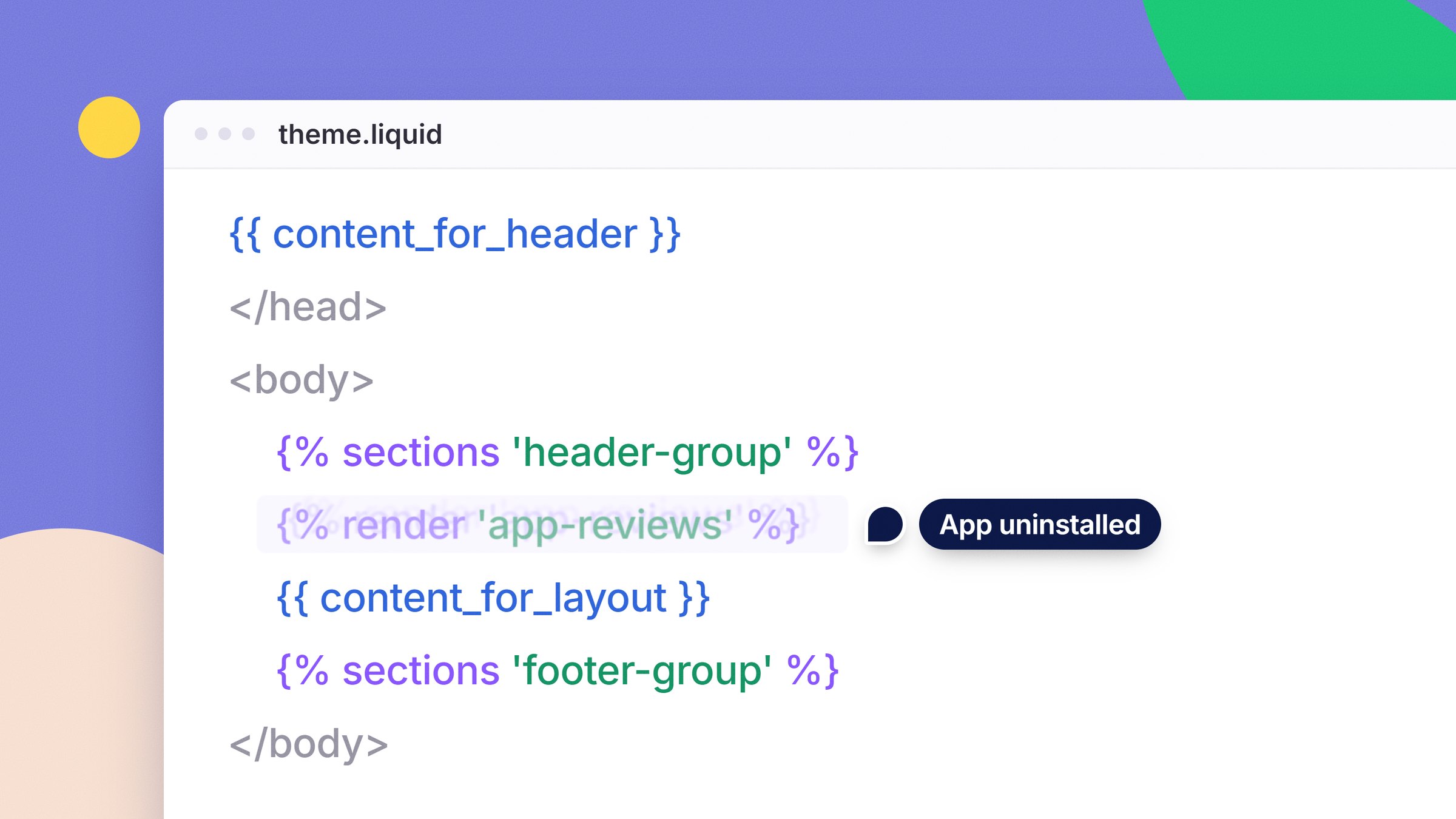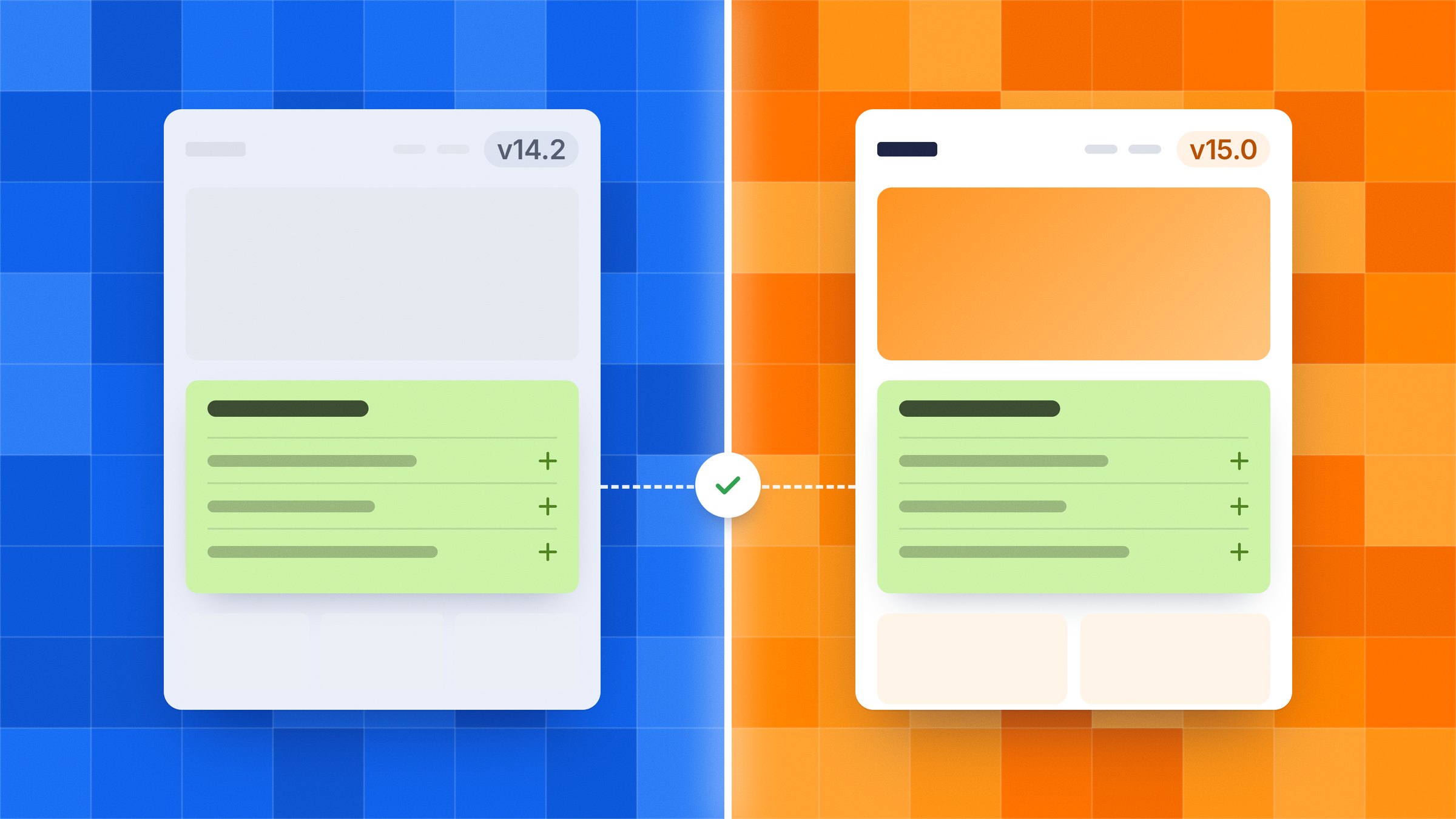
When a theme update appears in your admin, most of the advice you'll find says the same thing: an update replaces your code, so back everything up and paste it back in by hand. That was Shopify's own rule until autumn 2025. Today Shopify includes your code edits in the updated theme as long as they don't conflict with the developer's changes, and a section pasted into its own file should have nothing to conflict with.
The rule changed in autumn 2025
Until at least 18 September 2025, Shopify's help page told merchants that any code change meant "Your code changes won't be included in the updated version". By early October the same page said the opposite: code edits that don't conflict with the update are included, whether you made them or an installed app did. Many guides still tell you every update wipes your work.
Shopify also tells you which way it went. Once the updated theme lands in your draft themes, its card reads either "Theme added: code edits successfully included" or "Theme added: code edits could not be included". It is the first thing to read after an update, although "included" only means the code merged (more on that below).

Two layers, two rules
A Shopify theme holds your store's design in two places, and an update treats them differently.
Everything you change in the theme editor sits in the first layer: theme settings, which sections appear on which page and in what order, each section's images, text and colours, new templates, app embeds and wording changed in the content editor. All of it is copied into the updated theme.
The second layer is code: anything you or an app changed in the code editor, with the exception of the Templates folder and settings_data.json, which belong to the first layer; this is the layer that can conflict.
Where your code sits decides what happens to it
When Shopify can't merge an edit, it lists the files it gave up on – in one merchant's case from May 2026, the theme's header, footer, contact form and seven more of its own sections. A clash means both sides changed the same part of the same file. When that happens, the developer's version wins and your change is left behind.
A section pasted as a new file sits outside that collision. A PROPS section, for example, is one file called something like props-faq-rows.liquid that you add next to the theme's own sections. The developer never ships, edits or removes a file by that name, so the update has nothing to compare it against and should copy it in, unless a future version of the theme adds a file with the same name. A developer who updated a store from Impact 4 to Impact 7 in April 2026 saw exactly that: the section files the store had added came across and kept working, while edits inside theme.liquid, theme.css and the theme's JavaScript were lost because the new version had rewritten those files.
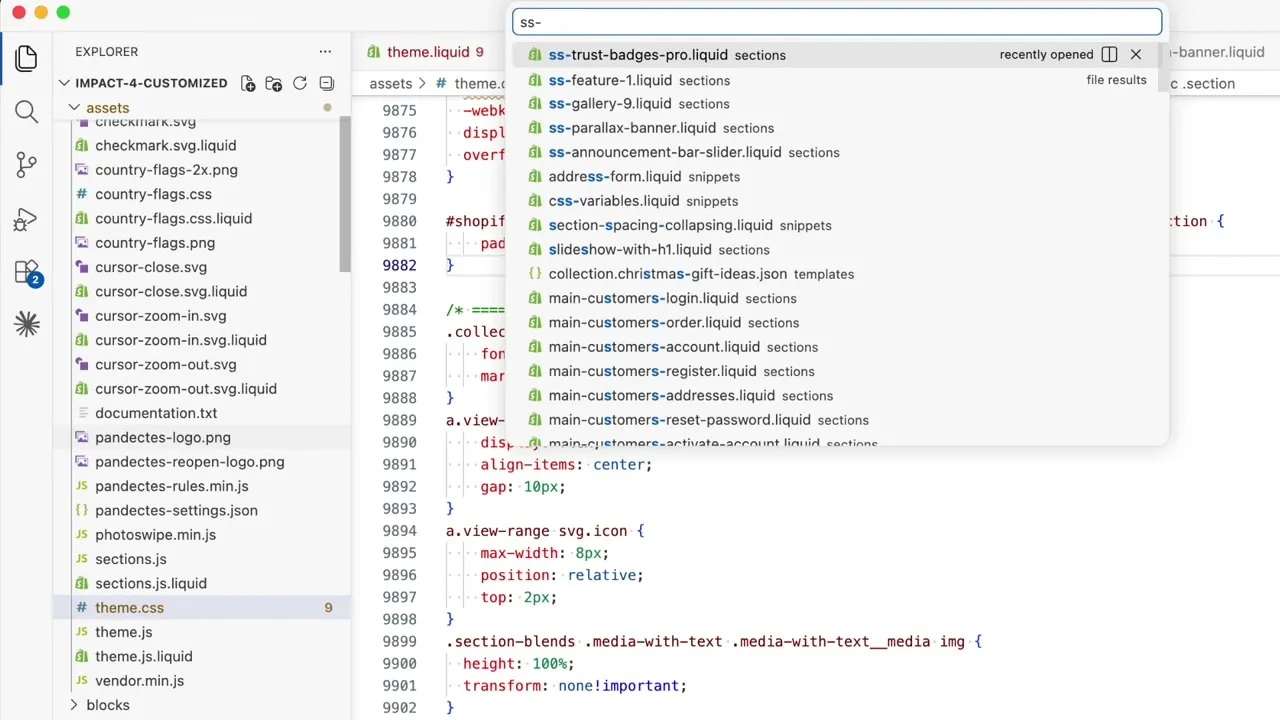
Edits typed into the theme's own files are the ones at risk, and only when the developer happens to change the same part: a tracking script pasted into theme.liquid, a tweak to header.liquid, a block of CSS added to the end of the theme's stylesheet. If you have a choice, put new work in a new file, and an update becomes something to review rather than something to rebuild.
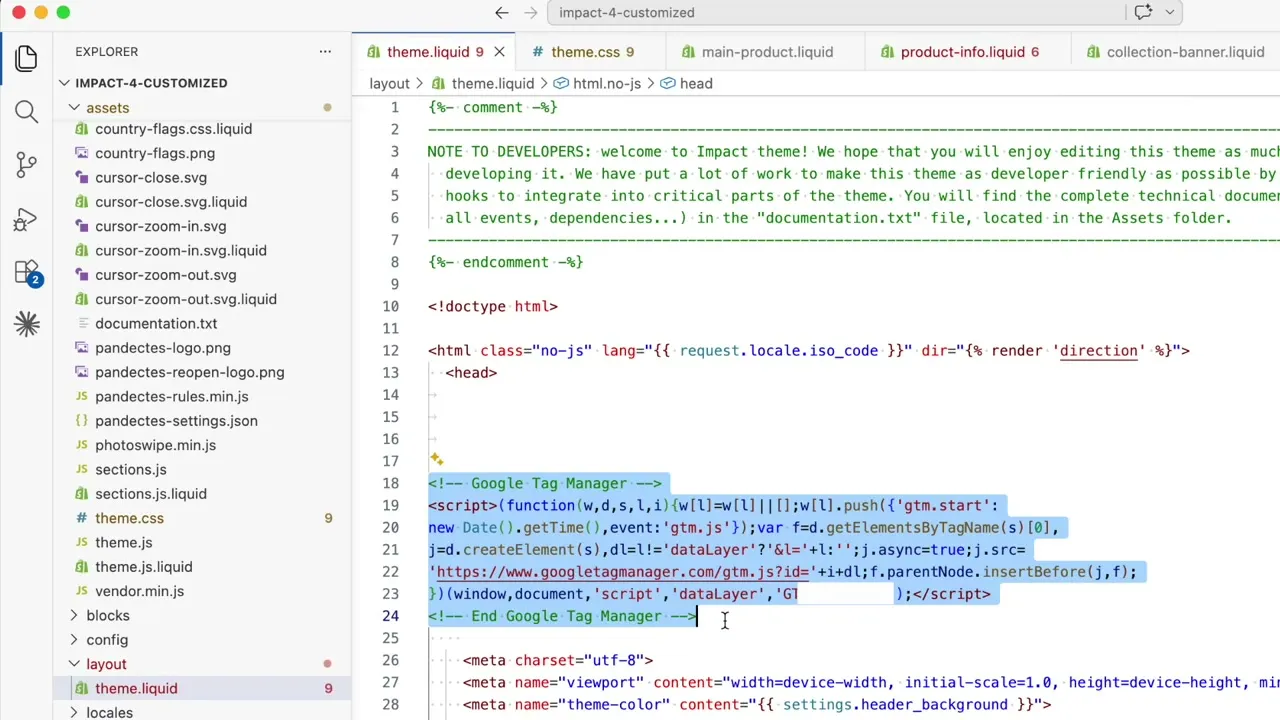
How to update without surprises
An update can't break your live store on its own, although publishing it unchecked can. If you have edited any theme file, Shopify won't update the theme in place; it installs the new version as an unpublished copy named "Updated copy of" your theme, and your store keeps running on the old one until you press Publish.

- Keep a way back. Duplicate your live theme before you start, and save a copy of any code you've customised, as Shopify advises. A store holds at most 20 themes, so you may need to delete an old draft first.
- Add the update to your draft themes. In Online Store, the notice sits where your theme's version number usually is. Open it, read the release notes, then choose Add to draft themes. Some updates take several minutes.
- Read the card. "Code edits successfully included" means your pasted sections came across. "Could not be included" means at least one edit didn't: look at the files it names, and open the new copy's code (⋯ > Edit code > Sections) to see whether your section files are there.
- Open every page that uses a pasted section with the card's Review button. "Included" means the code was merged, not that it still looks right next to a redesigned header, and placements are worth checking with your own eyes even though Shopify copies them.
- Check custom CSS. It can be carried over and still miss, because the selectors it targets may no longer exist in the new version.
- Publish, and keep the old theme in your theme library for a while, so you can switch back if you need to.
When an edit doesn't make it
If the card says your edits couldn't be included, nothing is lost: your published theme still has every one of them. For a section that lives in its own file, the fix is the same as installing it the first time: copy the file from the old theme, or from PROPS, into the new theme's sections folder, then place it on the page again. Edits inside files the developer rewrote are a different job, because your change has to be fitted into their new code; that is a job for a developer, and until it's done the old theme can stay published.