for shop owners, not developers

Copy, paste,
place.

That’s the whole job. Add a PROPS section to your Shopify store in about two minutes, with no apps and no code to write.

  • Nothing changes until you Save

    Your shoppers see the new section only after you place it and press Save.

  • No code to write

    You copy and paste one file. Every setting after that is a slider, a colour or a text box.

  • Easy to undo

    Remove the section in the theme editor, and your page is exactly as it was.

three words you’ll see

  • ThemeYour store’s design. You can keep a spare copy of it to practise on.
  • SectionOne block of a page: a banner, a gallery, an FAQ.
  • Code editorWhere your theme’s files live. You’ll only paste here.

Move 1 of 3

Copy.

Every PROPS section is one file. Copying it is like copying a recipe: nothing on your store changes yet.

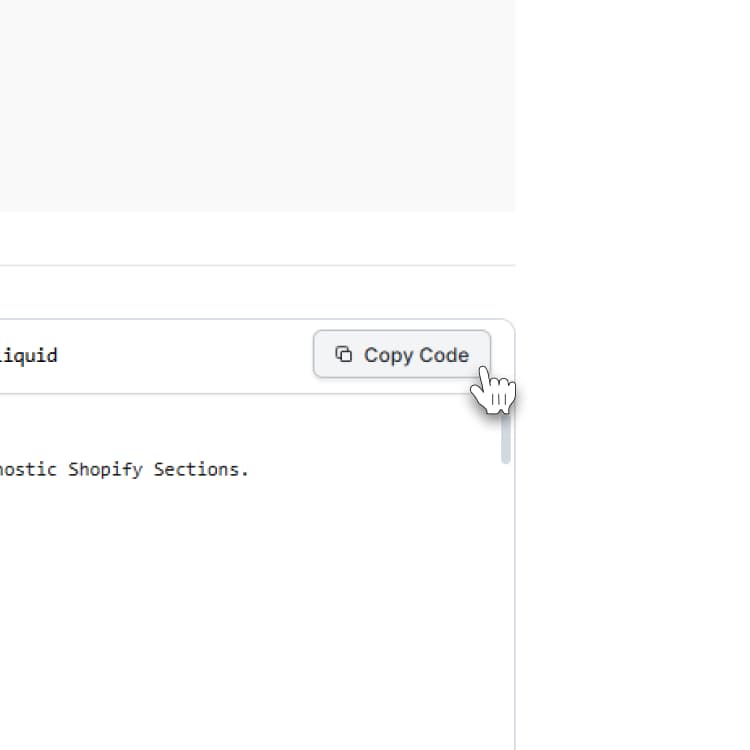
  1. Open any section in the library and press Copy code.

  2. Note the file name on the section page. You’ll type it in a moment.

The Copy code button on a PROPS section pageone click, whole file

Move 2 of 3

Paste.

Your theme keeps its sections as files. You’re adding one more file next to them. Customers still see nothing new.

  1. In your Shopify admin, open the code editor for your theme.

    Online StoreThemes⋯Edit code

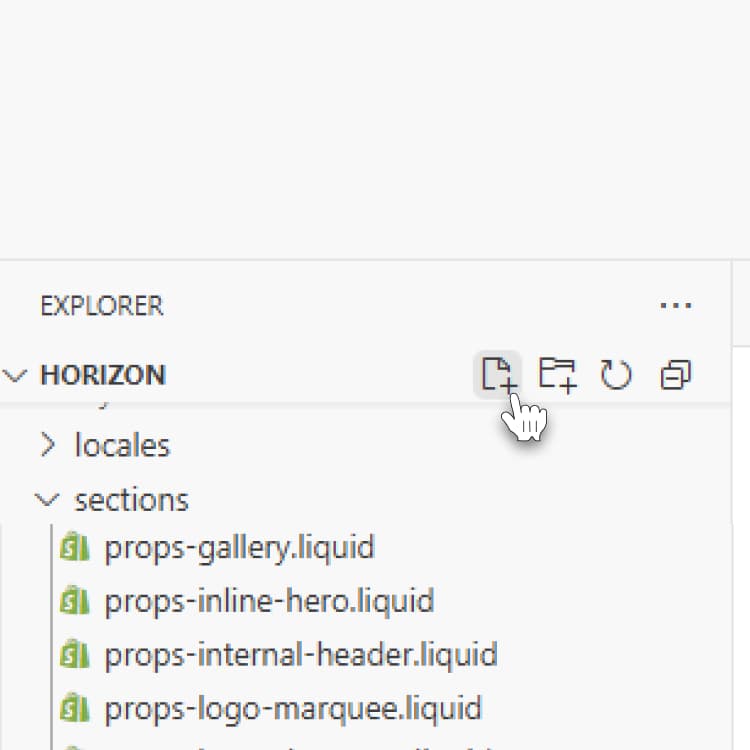
  2. In the sections folder, add a new file with the same name as the PROPS file.

    sectionsNew file

  3. Delete anything Shopify put in the new file, paste the PROPS code, and press Save.

The Shopify code editor with the new file button above the sections folderthe sections folder

Move 3 of 3

Place.

Back in the visual editor you already know, the new section waits in the list. This is the only part customers will see.

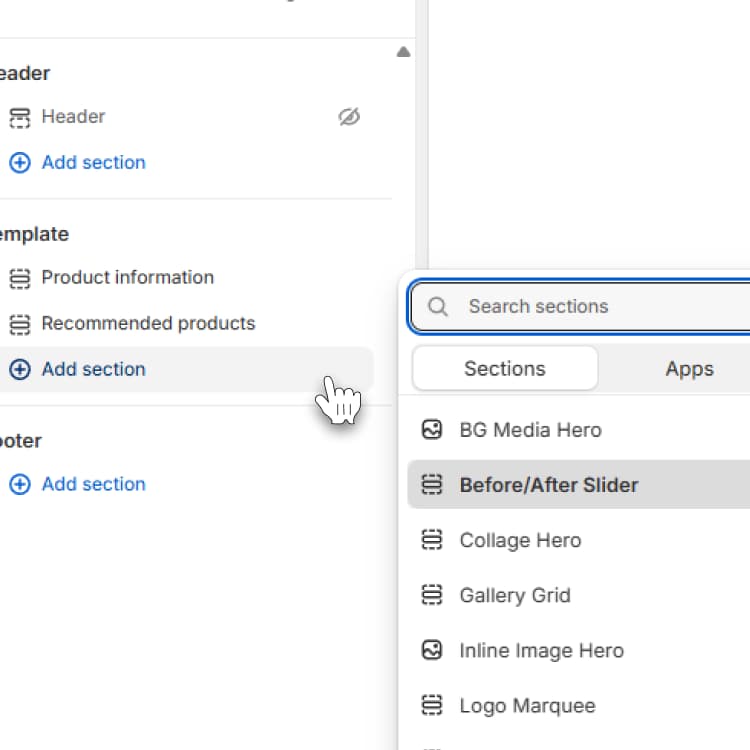
  1. Open the theme editor and click Add section on the page you want.

    ThemesEdit themeAdd section

  2. Pick your section, change its words, images and colours, then press Save.

Pick your first section
The theme editor Add section list with PROPS sections in itit’s in the list!

when it doesn’t work

Troubleshooting,
sorted.

The section isn’t in the Add section list. Why?

Check the file is inside the sections folder, ends in .liquid and saved without an error. Then reload the theme editor. Sections only show up on Online Store 2.0 themes, which covers every theme in the Shopify Theme Store today.

Shopify shows an error when I save.

The paste was probably cut short or mixed with the starter code. Clear the file completely, copy the section again from PROPS and paste it once. If it still fails, use “Report an issue” on the section page and tell us your theme.

How do I practise without touching my live store?

In Online Store › Themes, open the ⋯ menu on your theme and choose Duplicate. Follow this guide on the copy, preview it, and publish it only when you’re happy.

What happens when my theme updates?

Shopify installs the update as a new draft called “Updated copy of” your theme and brings across code edits that don’t clash with the update. A pasted section sits in its own file, so it usually comes across. Read the message on the new copy’s card and check the pages that use the section before you publish. If the card says code edits could not be included, repeat the Paste step on the new copy.

How do I remove a section completely?

Remove it from your pages in the theme editor first, then delete the file from the sections folder in the code editor.

House of Brilliant Ideas

Rather not do it yourself? We’ll install it for you.
Start a project
  • Install and set up

    We add the sections to your theme and fill them with your content.

  • Match your brand

    Fonts, colours and spacing tuned so it looks like it was always there.

  • Build something new

    Need a section the library doesn’t have? We’ll design and code it.