When you uninstall an app from your Shopify store, Shopify immediately revokes that app's API access tokens. That revocation cuts off access to store data, but it also stops the app from removing any files or code snippets it previously injected into your theme. The leftover lines remain behind as ghost code, which can slow down page loads or trigger visible storefront errors when your theme tries to render snippets that no longer exist.
Why legacy apps modified theme code
Traditional Shopify app integrations modified theme code to inject assets, extract data, and extend features. Because early themes had no built-in app container framework, developers added snippet files directly to the theme's snippets/ directory and inserted tags into layout or section templates to call them. Apps also injected custom JavaScript to add HTML elements directly into the page layout.

Some apps add code to an online store theme that is not automatically removed upon uninstallation. Because an uninstalled app can no longer touch your store files, those edits remain behind in your theme as ghost code. Shopify says this leftover code can cause quality and performance problems and takes stores off their theme upgrade path.
How an orphaned snippet breaks the storefront
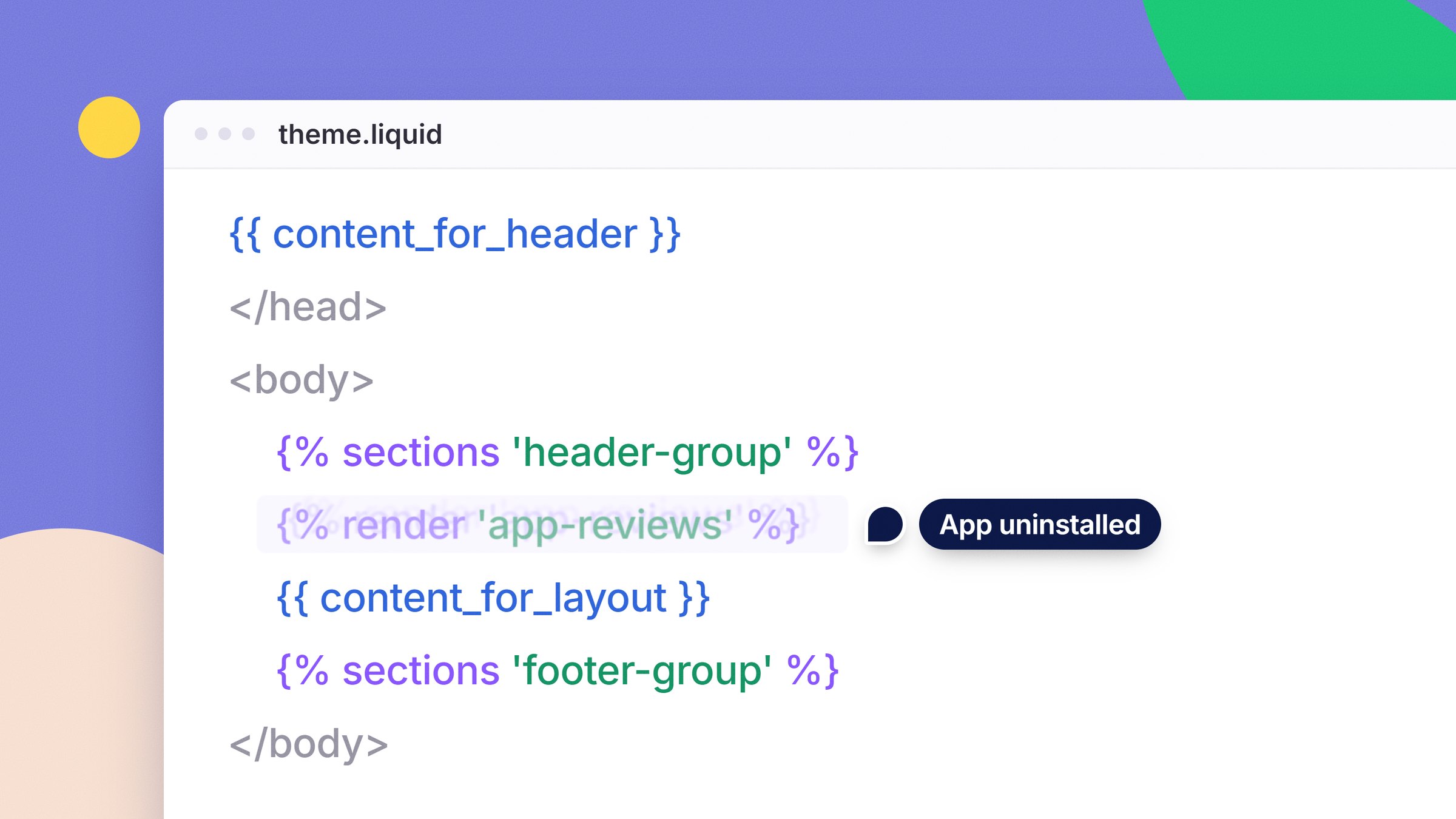
When an uninstalled app leaves behind an active snippet tag in your layout files, your storefront displays an error banner: Liquid error: Could not find asset snippets/[name].liquid. The error occurs when a merchant manually deletes the leftover snippet file from their theme (or an app cleanup script removed the file) while leaving the render tag behind in layout/theme.liquid.

When a render or include tag calls a snippet file that no longer exists, the error shows on the live page where that snippet should be. Because theme.liquid wraps every storefront template, a single orphaned snippet call displays the error banner across every page of your store.
On merchant community forums, store owners facing this error frequently receive offers from outside developers asking for full store staff access with theme editing permissions to fix it. Granting staff permissions to unfamiliar parties introduces security risks for a problem that requires deleting only one line of code.
Removing the leftover render tag
Clearing a snippet error requires deleting only the single tag in your theme that requests the missing file. The error message gives you the exact name of the file Liquid cannot locate, which allows you to find and remove the reference directly in the Shopify theme code editor.
- Duplicate your live theme. Go to Online Store > Themes, click the three dots (
...) beside your published theme, and select Duplicate. This creates a backup copy before you make changes. - Open the code editor. Click the three dots (
...) on your live theme and select Edit code. - Open theme.liquid. In the left sidebar, open the Layout folder and click
theme.liquid. - Search for the snippet name. Press Ctrl+F on Windows or Cmd+F on Mac, and paste the snippet name displayed in your error message. For example, if the error cites
snippets/app-reviews.liquid, search forapp-reviews. - Delete the tag. Locate the line calling the snippet, which typically reads
{% render 'snippet-name' %}or{% include 'snippet-name' %}. Delete that entire line. - Save and verify. Click Save in the top right corner, then refresh your storefront page in your browser to confirm the error banner has disappeared.
Before deleting any leftover file in the Snippets folder, search the theme code for that snippet's file name to confirm no other templates or sections call it. If you are uncertain whether other files still reference it, leave the snippet file alone. An unreferenced snippet file sitting unused in your snippets/ folder does not execute and will not slow down page loads, whereas deleting a snippet that another template still calls will trigger a new missing snippet error on your storefront.
Modern app blocks versus legacy theme edits
Shopify Theme App Extensions prevent ghost code by isolating app features from your theme's Liquid files. Apps submitted to the Shopify App Store that integrate with themes must use this extension architecture rather than modifying theme code directly. Because theme app extensions do not alter your theme's Liquid files, uninstalling the app removes its functionality without breaking your store layout.

Theme app extensions provide two block types:
- App blocks: Inline components added, positioned, and customized directly inside page sections using the visual theme editor. When an app block is removed or the app is uninstalled, the component disappears from your page without altering your Liquid templates.
- App embed blocks: Floating or background elements, such as chat widgets and analytics scripts. App embeds remain turned off by default when an app is installed. You turn them on or off in the theme customizer under Theme Settings > App embeds, and you can restrict them to specific pages to avoid loading unnecessary scripts sitewide. Toggling an app embed off disables the script immediately while leaving your theme's Liquid layout files completely untouched.
When legacy storefront scripts stop running
Shopify is phasing out legacy script tags that older apps used to inject external JavaScript into storefronts. Shopify has stopped allowing developers to create or update storefront script tags, and on 1 March 2027, Shopify will permanently stop running legacy script tags on online storefronts. After 1 March 2027, any leftover script tag records from old apps will no longer execute on your storefront.
Until that cutoff, older apps that have not migrated to app embeds can still leave active scripts running in the background. If an app attempts to run both an older script tag and a modern app embed at the same time, it can execute its JavaScript twice, which can duplicate analytics tracking or render interface elements multiple times.
Keeping storefront features in clean section files
Shopify stores often rely on third-party apps for standard storefront elements like FAQ accordions, testimonial grids, and announcement banners. While an app provides a fast way to add a component, each added app introduces recurring subscription fees, external network requests, and potential theme conflicts.
PROPS offers an alternative approach: customizable, theme-agnostic Liquid sections that live as single files inside your theme's sections/ directory. Because sections run directly through Shopify's native Liquid rendering engine, they execute without external JavaScript dependencies or remote server calls.
When you install a single-file section, you paste one file into your theme and configure it visually in the theme customizer without editing layout/theme.liquid. If you ever decide to remove the section, deleting that single file or removing it from your page template leaves zero orphaned code behind in your store.